Kubernetes
本指南详细介绍如何使用官方 Helm chart,在 Kubernetes 集群中安装和配置 Traefik Proxy。指南涵盖以下内容:
- 配置标准 HTTP(
web)和 HTTPS(websecure)入口点 - 实现从 HTTP 到 HTTPS 的自动重定向
- 使用基本身份验证保护 Traefik 仪表盘
- 部署演示应用以测试配置
- 探索其他关键配置选项
前提条件
- Kubernetes 集群
- Helm v3
- Kubectl
创建集群
如果尚无 Kubernetes 集群,可以通过 K3d 启动一个:
k3d cluster create traefik \
  --port 80:80@loadbalancer \
  --port 443:443@loadbalancer \
  --port 8000:8000@loadbalancer \
  --k3s-arg "--disable=traefik@server:0"
宿主机通过 80 和 443 端口访问 Traefik,而 8000 端口保留给后续演示。禁用 k3s 自带的 Traefik 以避免冲突。
检查上下文:
kubectl cluster-info --context k3d-traefik您应该看到类似以下内容:
Kubernetes control plane is running at https://0.0.0.0:56049
CoreDNS is running at https://0.0.0.0:56049/api/v1/namespaces/kube-system/services/kube-dns:dns/proxy
Metrics-server is running at https://0.0.0.0:56049/api/v1/namespaces/kube-system/services/https:metrics-server:https/proxy

To further debug and diagnose cluster problems, use 'kubectl cluster-info dump'.
添加 chart 仓库和命名空间
Helm 可以简化 Kubernetes 应用部署。Helm 将应用打包成“chart”,即描述 Kubernetes 资源的一组模板文件。我们使用官方 Traefik Helm chart,实现可管理、可定制的安装。
helm repo add traefik https://traefik.github.io/charts
helm repo update
kubectl create namespace traefik
第一条命令注册指向官方 chart 地址的 traefik 仓库别名。第二条命令刷新本地缓存,确保获取所有已配置仓库的最新 chart 和版本列表。
创建本地自签名 TLS Secret
只要监听器使用 protocol: HTTPS,Traefik 的 Gateway 监听器就需要证书。
在本地开发时,可以创建一次性的自签名证书,
并将其存储在名为 local‑selfsigned‑tls 的 Kubernetes Secret 中。
Gateway 引用此 Secret,在 websecure 监听器上终止 TLS。
# 1) Generate a self‑signed certificate valid for *.docker.localhost
openssl req -x509 -nodes -days 365 -newkey rsa:2048 \
  -keyout tls.key -out tls.crt \
  -subj "/CN=*.docker.localhost"

# 2) Create the TLS secret in the traefik namespace
kubectl create secret tls local-selfsigned-tls \
  --cert=tls.crt --key=tls.key \
--namespace traefik为什么需要这样做
Gateway 的 HTTPS 监听器通过 certificateRefs 引用此 Secret。
如果缺少它,Helm chart 校验会失败,HTTP→HTTPS 重定向链也会中断。
生产环境提示
上面的自签名证书仅适用于本地开发。生产环境中,应将组织 CA 签发的证书存入 Secret,或让 cert-manager、Traefik ACME(Let's Encrypt)等自动签发工具按需生成证书。更新 certificateRefs(位于 websecure 监听器中),或使用 traefik.io/tls.certresolver,使客户端收到可信证书,不再出现浏览器警告。
准备 Helm Chart 配置值
创建 values.yaml 文件,填入以下内容:
# Configure Network Ports and EntryPoints
# EntryPoints are the network listeners for incoming traffic.
ports:
  # Defines the HTTP entry point named 'web'
  web:
    port: 80
    nodePort: 30000
    # Instructs this entry point to redirect all traffic to the 'websecure' entry point
    http:
      redirections:
        entryPoint:
          to: websecure
          scheme: https
          permanent: true

  # Defines the HTTPS entry point named 'websecure'
  websecure:
    port: 443
    nodePort: 30001

# Enables the dashboard in Secure Mode
api:
  dashboard: true
  insecure: false

ingressRoute:
  dashboard:
    enabled: true
    matchRule: Host(`dashboard.docker.localhost`)
    entryPoints:
      - websecure
    middlewares:
      - name: dashboard-auth

# Creates a BasicAuth Middleware and Secret for the Dashboard Security
extraObjects:
  - apiVersion: v1
    kind: Secret
    metadata:
      name: dashboard-auth-secret
    type: kubernetes.io/basic-auth
    stringData:
      username: admin
      password: "P@ssw0rd"      # Replace with an Actual Password
  - apiVersion: traefik.io/v1alpha1
    kind: Middleware
    metadata:
      name: dashboard-auth
    spec:
      basicAuth:
        secret: dashboard-auth-secret

# We will route with Gateway API instead.
ingressClass:
  enabled: false

# Enable Gateway API Provider & Disables the KubernetesIngress provider
# Providers tell Traefik where to find routing configuration.
providers:
  kubernetesIngress:
    enabled: false
  kubernetesGateway:
    enabled: true

## Gateway Listeners
gateway:
  listeners:
    web:           # HTTP listener that matches entryPoint `web`
      port: 80
      protocol: HTTP
      namespacePolicy:
        from: All

    websecure:         # HTTPS listener that matches entryPoint `websecure`
      port: 443
      protocol: HTTPS  # TLS terminates inside Traefik
      namespacePolicy:
        from: All
      mode: Terminate
      certificateRefs:
        - kind: Secret
          name: local-selfsigned-tls  # the Secret we created before the installation
          group: ""

# Enable Observability
log:
  level: INFO
# This enables access logs, outputting them to Traefik's standard output by default. The [Access Logs Documentation](https://doc.traefik.io/traefik/observability/access-logs/) covers formatting, filtering, and output options.
accessLog:
  enabled: true

# Enables Prometheus for Metrics
metrics:
  prometheus:
    enabled: true
使用 Helm Values 安装 Traefik
现在,通过 Helm 客户端应用配置。
# Install the chart into the 'traefik' namespace
helm install traefik traefik/traefik \
  --namespace traefik \
  --values values.yaml
命令说明:
helm install traefik:指示 Helm 创建名为traefik的新发布实例(release)。traefik/traefik:指定所用 chart(此前添加的traefik仓库中的traefikchart)。--namespace traefik:指定安装到的 Kubernetes 命名空间。建议使用专用命名空间。--values values.yaml:应用values.yaml文件中的自定义配置。
访问仪表盘
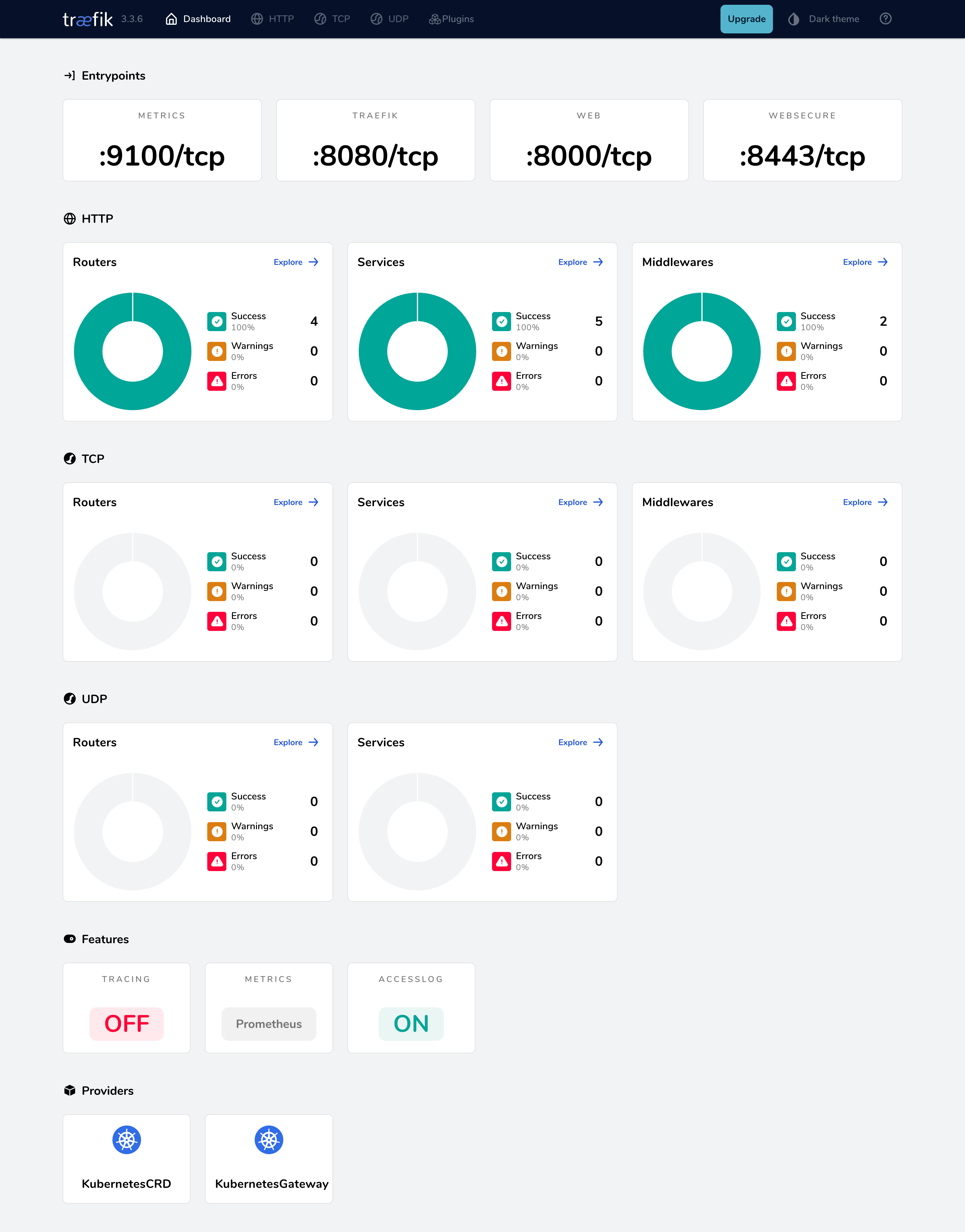
Traefik 部署完成后,您可以通过 https://dashboard.docker.localhost/ 访问仪表盘。访问此链接时,浏览器会提示输入用户名和密码。请使用 values.yaml 文件中设置的凭证登录。登录成功后,将显示如下仪表盘:
部署演示应用
为测试配置,在 Kubernetes 集群中部署 Traefik whoami 应用。创建名为 whoami.yaml 的文件,并粘贴以下内容:
apiVersion: apps/v1
kind: Deployment
metadata:
  name: whoami
  namespace: traefik
spec:
  replicas: 2
  selector:
    matchLabels:
      app: whoami
  template:
    metadata:
      labels:
        app: whoami
    spec:
      containers:
        - name: whoami
          image: traefik/whoami
          ports:
            - containerPort: 80
---
apiVersion: v1
kind: Service
metadata:
  name: whoami
  namespace: traefik
spec:
  selector:
    app: whoami
  ports:
    - port: 80
应用清单:
kubectl apply -f whoami.yaml部署应用后,可以通过创建 Gateway API HTTPRoute 暴露应用。为此,创建名为 whoami-route.yaml 的文件,并粘贴以下内容:
apiVersion: gateway.networking.k8s.io/v1
kind: HTTPRoute
metadata:
  name: whoami
  namespace: traefik
spec:
  parentRefs:
    - name: traefik-gateway # Name of the Gateway that Traefik creates when you enable the Gateway API provider
  hostnames:
    - "whoami.docker.localhost"
  rules:
    - matches:
        - path:
            type: PathPrefix
            value: /
      backendRefs:
        - name: whoami
          port: 80
应用清单:
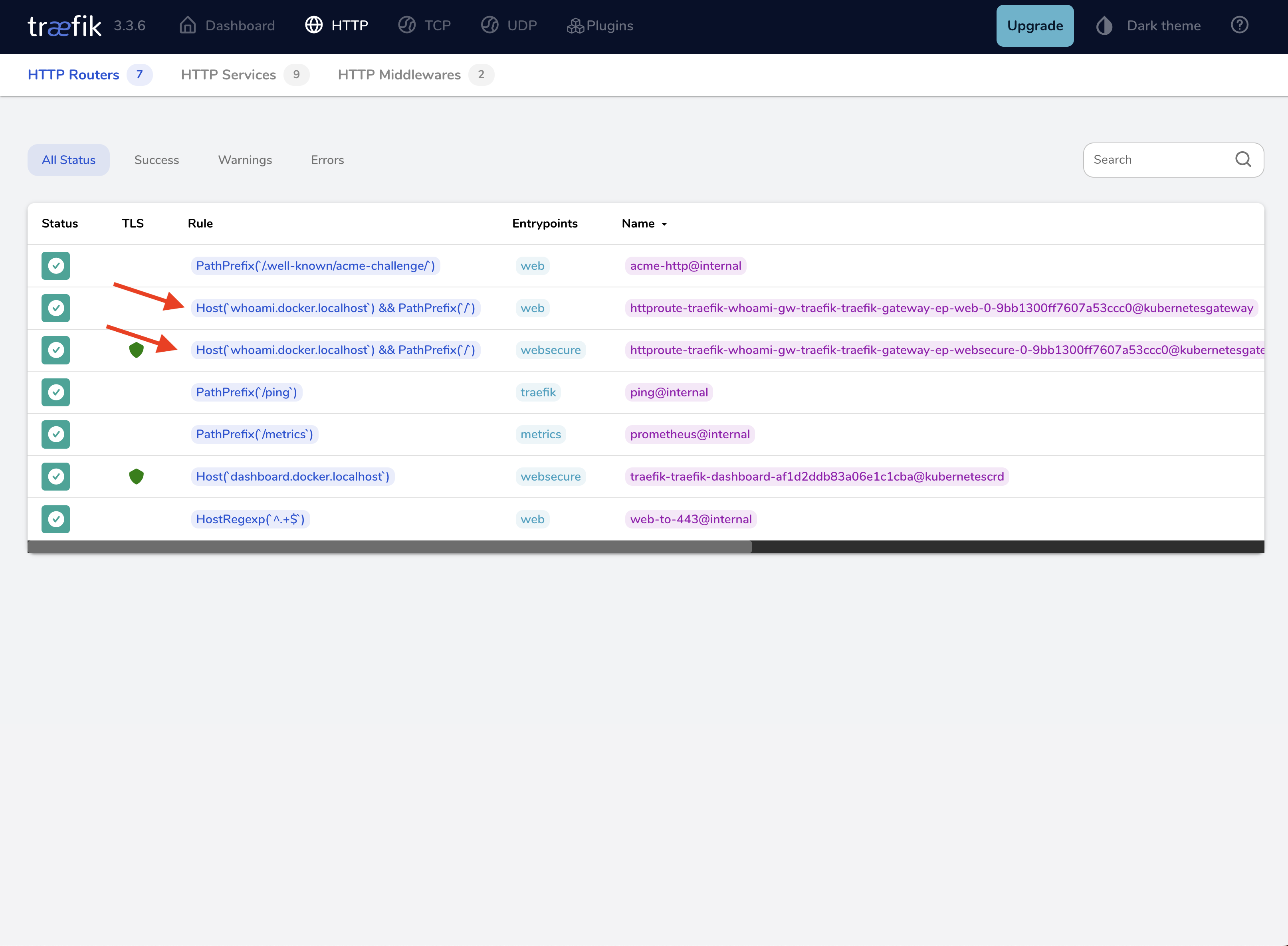
kubectl apply -f whoami-route.yaml应用清单后,进入 Traefik 仪表盘的 Routes(路由)部分,会看到已创建 https://whoami.docker.localhost 路由。
您可以使用 curl 测试应用:
curl -k https://whoami.docker.localhost/Hostname: whoami-76c9859cfc-k7jzs
IP: 127.0.0.1
IP: ::1
IP: 10.42.0.59
IP: fe80::50d7:a2ff:fed5:2530
RemoteAddr: 10.42.0.60:54148
GET / HTTP/1.1
Host: whoami.docker.localhost
User-Agent: curl/8.7.1
Accept: */*
Accept-Encoding: gzip
X-Forwarded-For: 10.42.0.1
X-Forwarded-Host: whoami.docker.localhost
X-Forwarded-Port: 443
X-Forwarded-Proto: https
X-Forwarded-Server: traefik-644b7c67d9-f2tn9
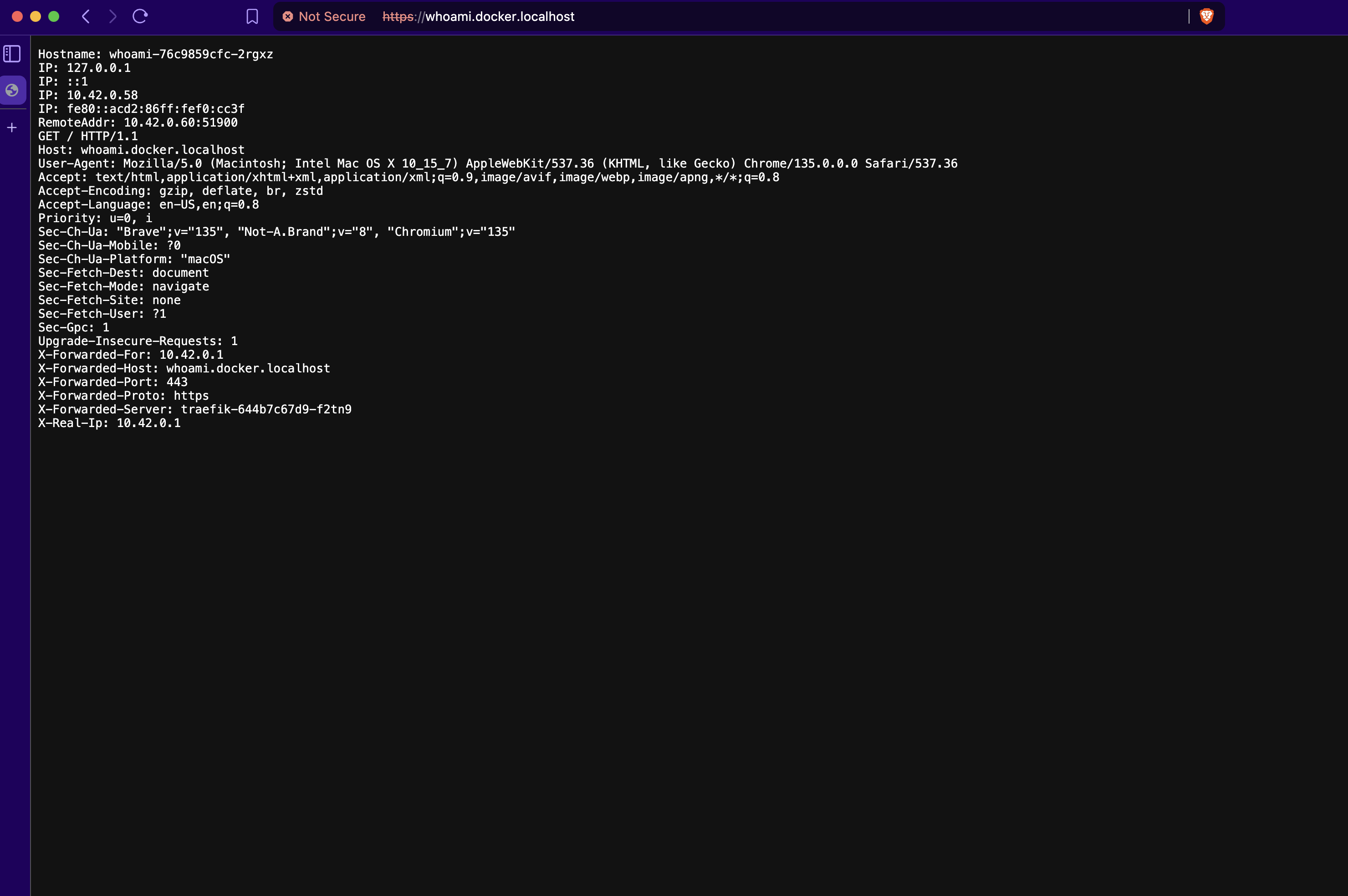
X-Real-Ip: 10.42.0.1您也可以在浏览器中访问 https://whoami.docker.localhost,查看服务输出的 JSON 数据。
其他关键配置领域
上述部署提供了安全的基础,但 Traefik 的能力远不止于此。下面简要介绍其他重要配置,并给出使用 Helm values.yaml 覆盖值的最小示例。
这些示例说明如何启用功能;详细选项请参阅主文档。
TLS 证书管理(Let's Encrypt)
websecure 入口点默认启用 TLS,但目前缺少有效证书。Traefik 可以使用 ACME 协议,从 Let's Encrypt 自动获取和续订 TLS 证书。
values.yaml 新增配置示例:
additionalArguments:
  - "[email protected]"
  - "--certificatesresolvers.le.acme.storage=/data/acme.json"
  - "--certificatesresolvers.le.acme.httpchallenge.entrypoint=web"
  # - "--certificatesresolvers.le.acme.dnschallenge.provider=your-dns-provider" # Requires provider-specific config, adjust if you control your DNS provider

# Enable persistence for ACME data (certificates, account) to ensure it survives pod restarts:
persistence:
  enabled: true
  name: data
  size: 1Gi
  storageClass: ""
这会启用名为 le 的证书解析器,配置必需的电子邮件和存储文件,并设置 HTTP 质询(需要能够访问 80 端口)。完整信息(包括 DNS 质询配置)请参阅 HTTPS/TLS 文档和 Let's Encrypt 文档。
在生产环境使用 Let's Encrypt
Let's Encrypt 只能为指向公网 IP 地址的主机名签发证书,该地址必须可通过 80 端口(HTTP-01)访问,或者可通过 DNS 提供商 API(DNS-01)完成验证。请将 *.docker.localhost 示例替换为您控制的真实域名,创建 DNS 记录,并保持集群的 80/443 端口开放,使验证能够成功。
Gateway API 与 ACME
Traefik 内置的 ACME/Let's Encrypt 集成适用于 IngressRoute 和 Ingress 资源,但不会为 Gateway API 监听器签发证书。
如果使用 Gateway API,请安装 cert-manager(或其他证书控制器),并在 gateway.listeners.websecure.certificateRefs 中引用它创建的 Secret。
指标(Prometheus)
Traefik 可以暴露 Prometheus 格式的详细指标,这对于监控其性能和所处理的流量至关重要。
values.yaml 新增配置示例:
# Enable metrics endpoint
metrics:
  prometheus:
    # The entry point metrics will be available on (usually internal/admin)
    entryPoint: metrics
    # Add standard Prometheus metrics
    addRoutersLabels: true
    addServicesLabels: true
    # ... other options available
这会在专用 metrics 入口点(9100 端口)上启用 Prometheus 端点。配置详情和可用指标请参阅指标文档。
追踪(OTel)
分布式追踪有助于理解请求的延迟以及它在系统中流经的路径,包括 Traefik 自身。
values.yaml 新增配置示例:
additionalArguments:
  - "--tracing.otel=true"
  - "--tracing.otel.grpcendpoint=otel-collector.observability:4317" # Adjust endpoint as needed
  - "--tracing.otel.httpendpoint=otel-collector.observability:4318" # Adjust endpoint as needed
这会启用 OTel 追踪并指定收集器端点。OTel 追踪的详情请参阅追踪文档。
结语
此配置为 Traefik 建立了安全的仪表盘访问和 HTTPS 重定向,并提供了启用可观测性与 TLS 的后续参考。
在生产环境使用 Traefik OSS?
如果你在工作中使用 Traefik,可以考虑为 Traefik OSS 增加企业级 API 网关能力或商业支持。
为 Traefik OSS 增加 API 网关能力快捷且平滑,无需推倒重来,现有配置也会完整保留。请通过这个简短视频了解实际效果。